Solving Sonos Connectivity & Audio Dropout Issues
Published 2025-12-22
If your Sonos system cuts out, drops rooms, refuses to group, or disappears from the app, the cause is almost never the speaker. It is the network.
Sonos is only as reliable as the environment you give it. Dense Wi-Fi, bad router placement, extenders, mesh misconfiguration, and "helpful" ISP defaults are where things fall apart.

Quick diagnosis (snippet-ready)
Start with the basics: router in the open and central, no extenders, no accidental mix of wired and wireless Sonos devices, and note whether issues spike at busy times. If the network changed recently (router, password, ISP), treat that as the likely trigger.
First: how Sonos actually talks to itself
Mode 1: Standard Wi-Fi
All speakers connect directly to your home Wi-Fi, like phones and laptops.
It is simple and works well with a solid router or mesh, but it suffers in congested areas and is sensitive to extenders and band steering.
Mode 2: SonosNet (dedicated mesh)
Wire one Sonos device and Sonos creates its own private mesh.
It is more stable in difficult environments and isolated from household Wi-Fi, but it requires one wired device and basic channel management.
Rule of thumb: if Sonos mostly works but is annoying, SonosNet usually fixes it.
Common Sonos problems and what they really mean
| Symptom | Most likely cause |
|---|---|
| Music keeps cutting out | Weak signal, congestion, mesh conflicts, or hopping access points |
| Speakers disappear from the app | IP changes, router confusion, multiple networks, extenders |
| Grouping drops rooms | One unstable speaker or interference on the Sonos channel |
Step 1: fix router placement
Good placement
Aim for central, open placement at least waist height, and keep the router away from TVs, cupboards, and other signal-blocking clutter.
Bad placement
Avoid hiding it behind the TV, placing it in metal cabinets, leaving it on the floor, or sitting it next to a boiler or fuse box.
If your router is badly placed, nothing else will fully stick.
Step 2: check for Wi-Fi extenders
Cheap extenders create new access points, devices jump between them, and Sonos hates inconsistent latency.
Replace extenders with a proper mesh system or disable them entirely and test stability before making any other changes.
Half-stable Wi-Fi is worse than weaker but consistent Wi-Fi.
Step 3: decide Wi-Fi or SonosNet (do not mix)
Stay on standard Wi-Fi
Keep every speaker on Wi-Fi, avoid wiring any of them, skip extenders, and rely on a well-configured mesh if you need coverage.
Switch to SonosNet
Wire one Sonos device, leave the rest wireless, avoid wiring multiple speakers unless intentional, and set SonosNet to channel 1, 6, or 11.
Step 4: reduce wireless interference
Common interference sources: microwaves, baby monitors, older cordless phones, Bluetooth, and crowded Wi-Fi.
Use a Wi-Fi analyzer app to see busy channels, move Wi-Fi or SonosNet to a quieter channel, and stick to 1, 6, or 11 for SonosNet.
Step 5: fix dual-band confusion
Sonos uses 2.4 GHz for range and reliability. Phones and laptops love 5 GHz. Problems happen when routers aggressively steer devices or constantly reassign connections.
Temporarily split SSIDs, connect Sonos to 2.4 GHz, and keep phones and laptops on 5 GHz to confirm steering is not the issue.
Step 6: change routers without breaking Sonos
- Open Sonos app.
- Settings → System → Network → Manage Networks.
- Update Wi-Fi details.
- Let Sonos push credentials to all speakers.
- Only then turn off the old router.
Avoid factory resets unless everything is truly broken.
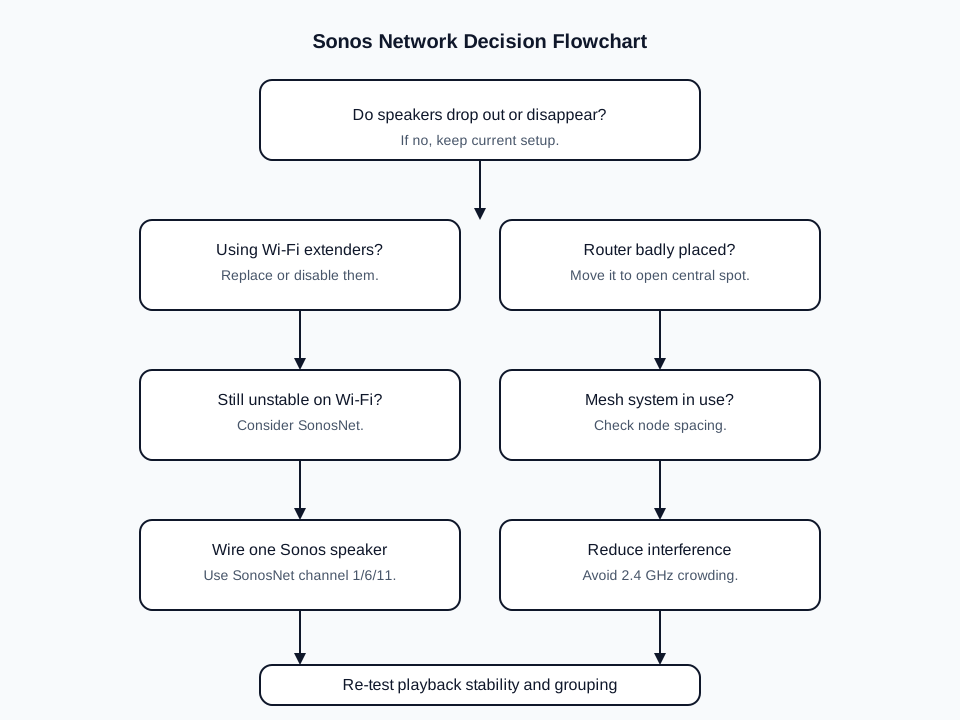
Network decision flowchart (linkable)
Use this flowchart to decide whether to stick with Wi-Fi, switch to SonosNet, or fix router issues first. You can link to this section from other guides.
Using the Sonos network matrix (advanced)
Visit http://<IP-of-any-sonos-speaker>:1400/support/review.
Green is good, yellow is marginal, red is a problem. Patterns matter more than single warnings, and one bad speaker can destabilise the entire system.
Mesh Wi-Fi: brilliant when done right
Good mesh setup
Nodes placed with strong signal between them, one SSID everywhere, minimal hopping, and wired backhaul where possible.
Bad mesh setup
Too many nodes, nodes too far apart, daisy-chained hops, or nodes competing for weak signals.
Wired connections: when Ethernet helps
Wiring one Sonos speaker activates SonosNet and often fixes everything. Wiring multiple speakers can create loops if done casually, so choose the most central speaker or the one nearest the router.
The nuclear option (rarely needed)
- Power down all Sonos speakers.
- Reboot the router.
- Wait for internet to stabilise.
- Power up Sonos speakers one at a time.
Factory resets are almost never the right answer.
Hardware that genuinely helps
One wired Sonos device, a decent mesh system for larger homes, and wired backhaul between mesh nodes are the only hardware fixes that consistently help.
Avoid cheap extenders, noisy powerline adapters, and random boosters.
Quick checklist before you blame Sonos
Make sure router placement is solid, extenders are out of the mix, you are not accidentally mixing wired and wireless speakers, interference is ruled out, and recent network changes have been reviewed.
Once your network is stable, grouping just works, dropouts disappear, and voice assistants behave. Most people never touch their network again after fixing it properly.
With stability solved, it is the perfect time to run Trueplay tuning and dial in the sound itself.
Ready for a plan you can trust?
Build a tailored Sonos setup in minutes. No guesswork, no overspend.
Plan your Sonos system with confidence
Use the Sonos Properly planner to build a system that fits your rooms and the way you listen.
- A tailored system plan that fits your rooms and listening style.
- A value-led alternative that respects budget without cutting corners.
- An Ultimate option for maximum impact and future flexibility.