Integrating Sonos with Voice Assistants (Alexa, Google Assistant, Siri)
Published 2025-12-22
Voice control with Sonos is brilliant when it is set up properly, and genuinely infuriating when it is not. The main reason it goes wrong is that you have three systems trying to behave like one: Sonos, the voice assistant platform, and your home network.
This guide covers the cleanest setup paths, what each assistant can and cannot do, and fixes for the common issues.
Before you start: three rules that prevent 80% of issues
1) Use one Sonos home and one Wi-Fi network
Keep every Sonos speaker on the same Wi-Fi SSID and stick to a single Sonos system. Mixing households or old setups is where the odd behavior begins.
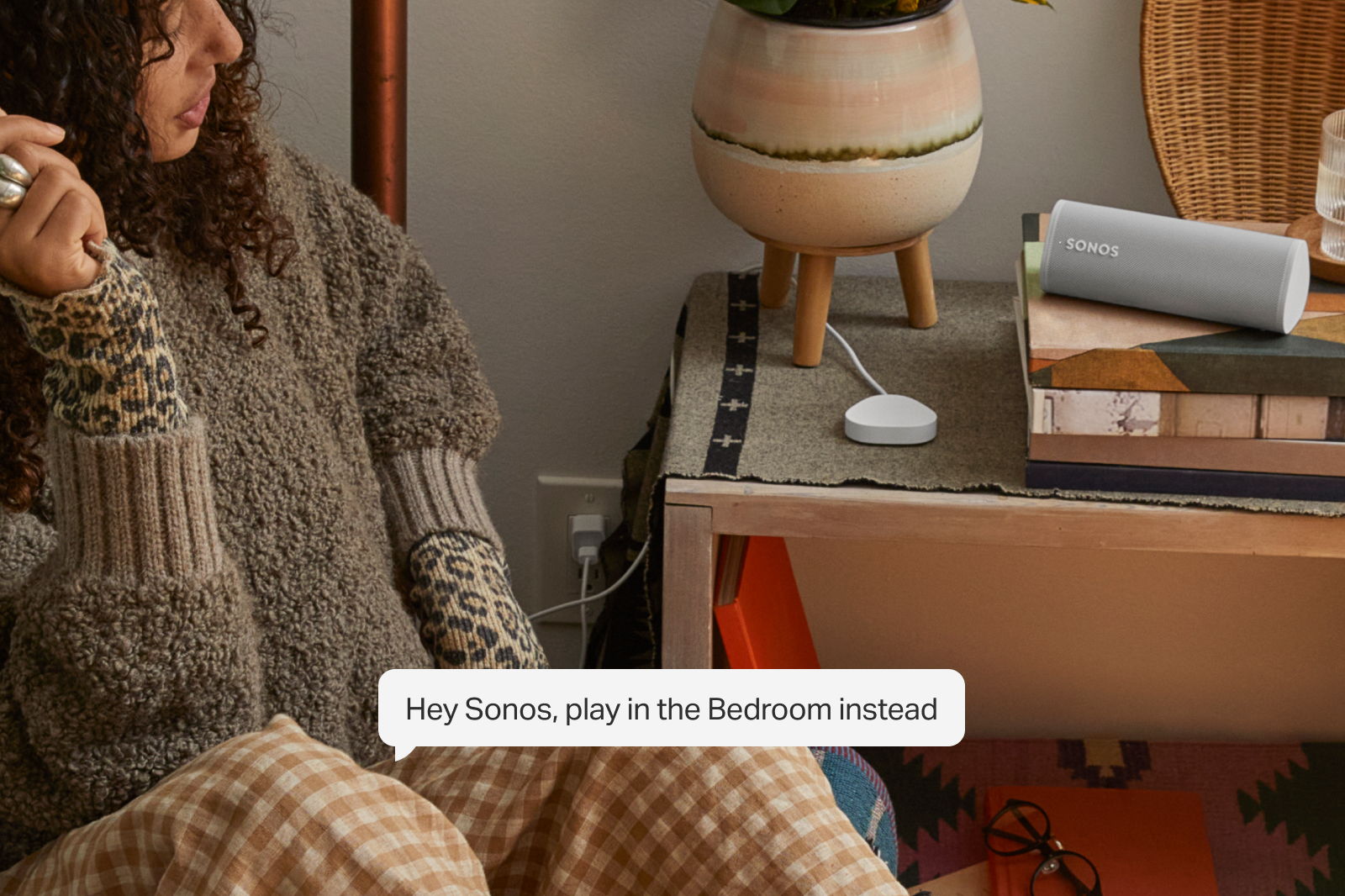
2) Name rooms like a normal person would say them
Avoid names like Kitchen 2, Living Room (TV), or Office_Sonos_Left. Use simple spoken names like Kitchen, Lounge, Bedroom, Office.
Also avoid two rooms with similar names (Living Room and Lounge) unless you enjoy repeating yourself.
3) Decide the default listening room per assistant
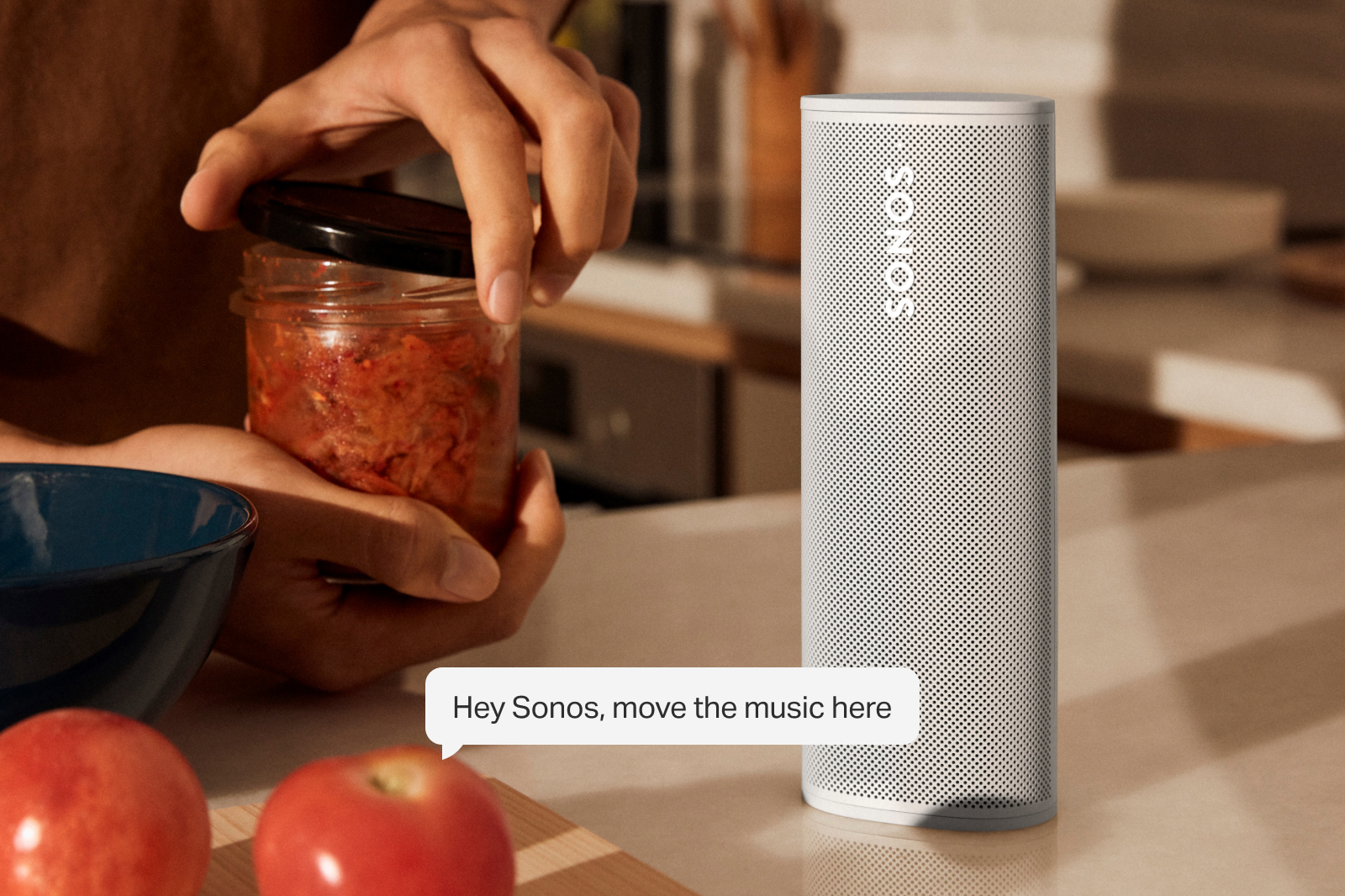
Alexa and Google both use a default speaker. Skip this and you will get playback in the wrong room.
Part 1: Amazon Alexa + Sonos
What Alexa can do well with Sonos
Alexa handles voice music playback, basic transport controls, and room targeting well, as long as services are supported in your region and a default speaker is set.
Where Alexa still annoys people
Multi-room behavior is the main pain point. Whole-home playback can be inconsistent, and confusion between Alexa groups and Sonos groups is the fastest way to break things.
Sonos groups are created in the Sonos app. Alexa speaker groups are created in the Alexa app. They are not the same thing, and mixing them is the fastest way to break things.
Setup A: Sonos speakers with Alexa built in
- Open the Sonos app.
- Go to Settings.
- Choose Services & Voice.
- Tap Add a Voice Assistant.
- Select Amazon Alexa.
- Sign in to your Amazon account.
- Assign Alexa to the correct Sonos room.
After setup, confirm the speaker appears in the Alexa app and test: “Alexa, play music in the Kitchen.”
Setup B: Echo devices controlling Sonos
- In the Alexa app, enable the Sonos skill.
- Link it to the same Sonos account used in the Sonos app.
- Discover devices.
- Go to Devices → Add Group.
- Create a group per room.
- Set the Preferred Speaker for that group to the Sonos speaker in that room.
This is the bit people miss: Preferred Speaker. Without it, Alexa plays out of the Echo itself.
Fix: Alexa is playing in the wrong room
- Alexa app → Devices → Groups.
- Open the room group you are speaking in.
- Set Preferred Speaker to the correct Sonos speaker.
- Rename the group if needed (Kitchen = Kitchen).
Then test: “Alexa, play BBC Radio 6 in the Kitchen.”
Fix: Alexa will not play to multiple Sonos speakers
Pick one approach and stick to it.
Sonos-first means grouping in the Sonos app and starting playback in the main room. Alexa-first means creating an Alexa multi-room group and playing to that group. Mixing both is where it unravels.
Part 2: Google Assistant + Sonos
What Google Assistant typically does well
Google Assistant is strong at natural speech playback, volume control, and room targeting, as long as your Google Home setup is consistent and device names are sensible.
Setup: Google Assistant on Sonos
- Open the Sonos app.
- Settings → Services & Voice.
- Add a Voice Assistant.
- Choose Google Assistant.
- Sign in and authorise.
- Assign to a Sonos room.
- Open Google Home and confirm the device appears correctly.
Immediately set your default music service and confirm the speaker is assigned to the right Home and Room.
Setup: Google Home or Nest device controlling Sonos
- In Google Home, ensure Sonos devices are visible.
- Create a Room (Kitchen, Lounge, etc.).
- Add the Google or Nest device to that room.
- Set the default speaker for that room to the Sonos speaker.
If you skip the default speaker setting, music will play from the Nest device instead of Sonos.
Fix: Google Home can see Sonos but will not control it
This usually comes down to mixed accounts, multiple Homes in Google Home, or network issues from multiple routers and extenders.
Checklist: same Google account, same Sonos account, one Google Home, and all devices on the same SSID.
Part 3: Siri + Sonos (AirPlay 2 and Shortcuts)
What Siri can do well
Siri is best for AirPlay from iPhone or Mac, starting playback via Shortcuts, and grouping AirPlay speakers from Control Centre.
What Siri cannot do reliably
It cannot provide always-on control for non-AirPlay Sonos speakers, and it does not run the system without an Apple device acting as the controller.
Setup: AirPlay 2 to Sonos
- Confirm your Sonos speaker supports AirPlay 2.
- Put iPhone and Sonos on the same Wi-Fi.
- Open Control Centre → AirPlay icon.
- Select the Sonos room or rooms to play to.
This is the simplest way to do whole-home audio when your Sonos speakers support AirPlay.
Setup: Siri Shortcuts for Sonos
Use the Sonos app shortcut actions where available, or build Shortcuts that start playback and AirPlay to a specific Sonos room.
Example commands: “Hey Siri, play my cooking playlist” or “Hey Siri, evening mode.”
Which assistant should you pick?
| Assistant | Best for | Trade-off |
|---|---|---|
| Alexa | Room-by-room voice control with cheap external mics | Group behavior can be inconsistent |
| Google Assistant | Natural speech control in a Google Home ecosystem | Integration varies by region and product |
| Siri | AirPlay control from iPhone with privacy focus | Not a full always-on assistant for Sonos |
Troubleshooting: fixes that actually work
1) Devices not appearing in Alexa or Google
Reboot the router and Sonos speakers, then run Discover Devices in Alexa or refresh and re-link services in Google Home.
2) It used to work, now it does not
Common causes include a router or password change, big IP shifts, or a new extender or mesh node that altered the network.
Stability beats cleverness. Simplify the network first.
3) Voice assistant hears you but plays on the wrong speaker
Fix room names, update default or preferred speaker settings, and ensure the voice device and Sonos speaker live in the same room inside the assistant app.
4) Group playback is unreliable
Pick one approach and stick to it:
Either group in the Sonos app and start playback there, or group in Alexa or Google and play to that group. Mixing both causes instability.
Ready for a plan you can trust?
Build a tailored Sonos setup in minutes. No guesswork, no overspend.
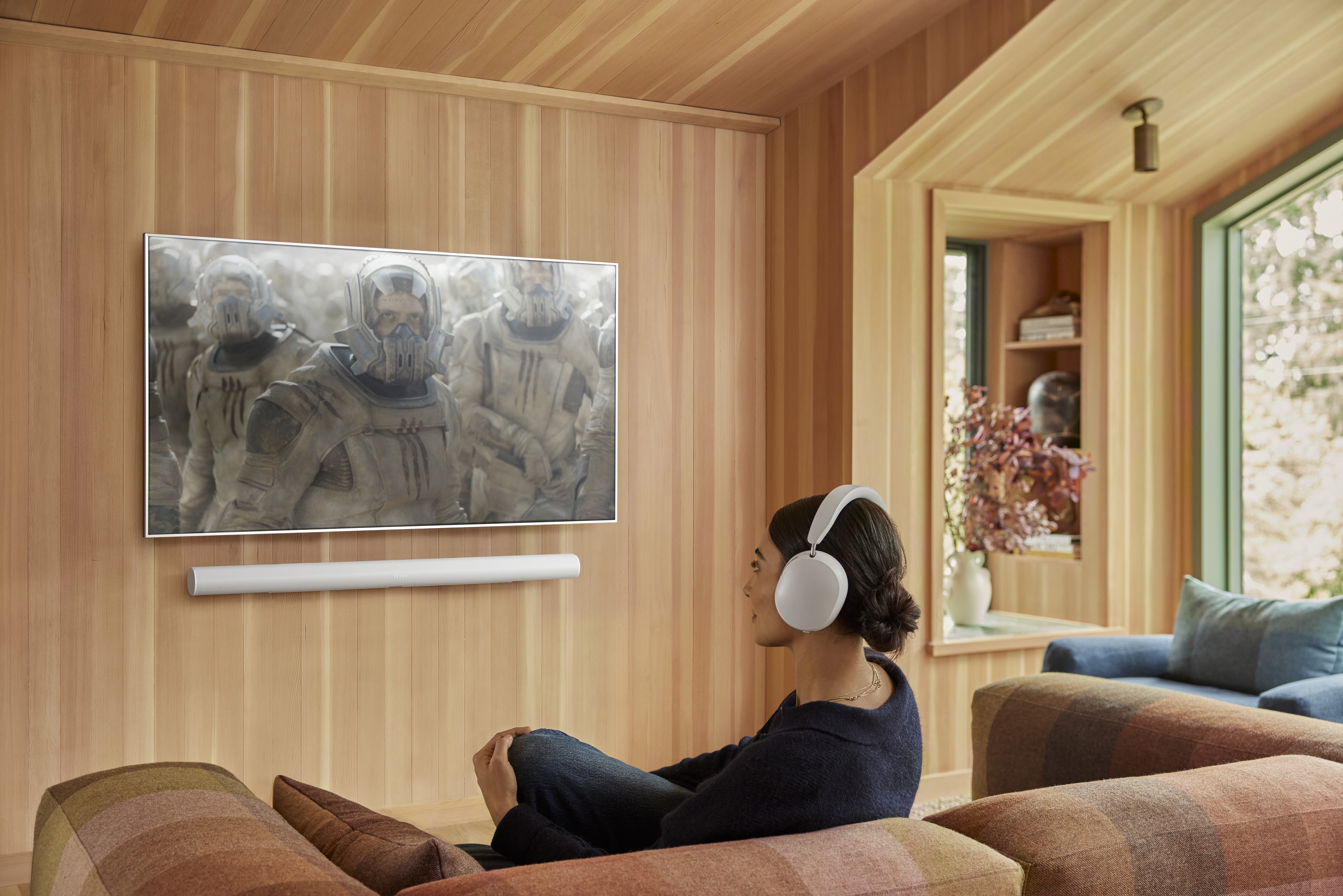
Plan your Sonos system with confidence
Use the Sonos Properly planner to build a system that fits your rooms and the way you listen.
- A tailored system plan that fits your rooms and listening style.
- A value-led alternative that respects budget without cutting corners.
- An Ultimate option for maximum impact and future flexibility.